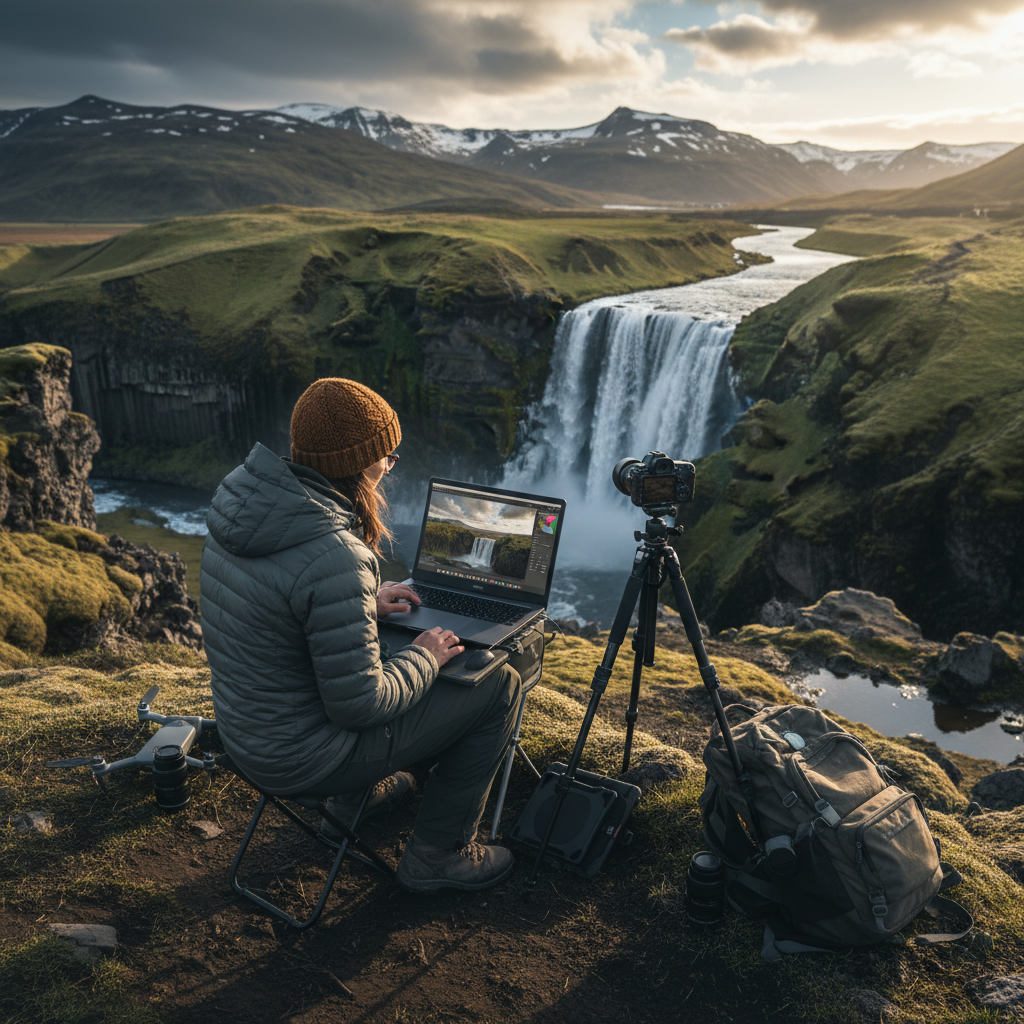
Iceland, the land of fire and ice, offers photographers an unparalleled canvas of dramatic landscapes. From the ethereal glow of the midnight sun to the brooding intensity of volcanic beaches, every frame captured is a testament to its raw, untamed beauty. Yet, the magic doesn't end when you click the shutter. In fact, for many, it's just beginning. Effective post-processing is the crucial step that transforms a good photograph into an extraordinary one, truly unlocking the beauty you witnessed.
This comprehensive guide dives deep into essential Iceland photo editing tips, providing a detailed workflow designed specifically for landscape photographers tackling the unique challenges of this Nordic gem. We’ll cover everything from pre-processing essentials and core adjustments to advanced techniques, leveraging Lightroom presets for Iceland, and avoiding common pitfalls. By the end, you'll have a robust strategy to elevate your Iceland photography, ensuring your images truly reflect the awe-inspiring experience of the island.
Understanding Iceland's Unique Photographic Challenges
Before diving into the edit, it's vital to understand the environmental factors that shape your raw files. Iceland's photographic allure is intrinsically linked to its challenges:
- Navigating Dramatic and Rapidly Changing Light Conditions: Iceland is notorious for its mercurial weather and unique light. During summer, the midnight sun bathes the landscape in soft, extended golden hours, offering endless opportunities but also demanding careful exposure management to avoid blown-out skies. In winter, short daylight hours mean intense, low-angle light that can quickly shift from dramatic to flat. Mastering exposure in these conditions is paramount, as it directly impacts your editing flexibility later.
- Dealing with Harsh Weather Elements: Rain, mist, wind, and snow are not just nuisances; they are integral to Iceland's character and often present in your shots. Mist can soften scenes, requiring clarity adjustments. Rain can create reflections but also mute colors. Wind can cause motion blur in long exposures. Post-processing helps to enhance the atmosphere these elements create without letting them detract from the image's overall impact. For instance, reducing haze from mist can reveal hidden details, while subtle vibrance boosts can compensate for muted colors.
- Capturing the Diverse Color Palettes: Iceland boasts an incredible spectrum of colors. Think the stark black sands of Reynisfjara, the otherworldly blues of glacial lagoons like Jökulsárlón, the vibrant greens of moss-covered lava fields, and the surreal geothermal hues of areas like Landmannalaugar. Each palette demands a different approach to color correction and grading to remain true to the scene or enhance its specific mood. Over-saturating one color might ruin another.
- The Importance of Capturing Dynamic Range in High-Contrast Scenes: Many Icelandic landscapes feature extreme contrast – bright skies over dark volcanic rock, sun-drenched glaciers next to deep shadows. Capturing the full dynamic range in-camera is crucial to avoid losing detail in highlights or shadows. This foresight in the field minimizes the need for aggressive recovery in post-processing, which can introduce noise or artifacting. Source: Ecobnb source.
Pre-Processing Essentials: Setting Up for Success
The best edits start with the best possible raw files. What you do before you even open your editing software can significantly impact the final quality and ease of your workflow.
- The Critical Advantages of Shooting in RAW Format: This cannot be stressed enough for serious landscape photographers in Iceland. RAW files contain significantly more data than JPEGs (often 12-bit or 14-bit depth compared to 8-bit), offering immense flexibility for adjustments. You can recover far more detail from blown highlights and deep shadows, make precise white balance adjustments, and push colors further without introducing banding or artifacts. Think of RAW as your digital negative, providing maximum latitude for post-processing.
- In-Camera Settings: Importance of Proper Exposure, White Balance, and Composition: While RAW offers flexibility, getting it right in-camera saves time and yields superior results.
- Exposure: Aim to "expose to the right" (ETTR) without clipping highlights, especially in high-contrast scenes. This maximizes the signal-to-noise ratio, leading to cleaner shadows. Use your camera's histogram religiously.
- White Balance: While adjustable in RAW, setting a sensible white balance in-camera (e.g., Cloudy, Shade, or a custom Kelvin setting) provides a better preview and a good starting point for editing.
- Composition: There's no editing trick for poor composition. Take your time, use leading lines, the rule of thirds, and foreground elements to guide the viewer's eye. A strong composition makes the editing process more about enhancement than correction. Consider exploring different Icelandic landscape photography spots to practice various compositional approaches.
- Initial Image Organization: Culling, Rating, and Creating a Logical Folder Structure: Upon returning from your trip, the first step is organization.
- Culling: Ruthlessly delete blurry, poorly exposed, or redundant shots. Less is more.
- Rating: Use a star rating system (e.g., 1-star for keepers, 3-star for potential edits, 5-star for portfolio shots) to quickly identify your best work.
- Folder Structure: Create a consistent and logical folder structure (e.g.,
Iceland_2026/SouthCoast/Day1orIceland_2026/Glaciers). This makes finding specific images years down the line much easier.
- Implementing Robust Backup Strategies: Your photos are irreplaceable memories and valuable assets. Implement a "3-2-1 backup rule": at least three copies of your data, on two different types of media, with one copy off-site. This could involve an external hard drive, cloud storage, and your original memory cards until the trip is fully processed and backed up.
Mastering Core Adjustments: Essential Iceland Photo Editing Tips
These are the foundational adjustments that lay the groundwork for any successful edit. Mastering them is key to bringing out the best in your Iceland photos.
- Exposure & Contrast: This is your first stop in the develop module.
- Exposure: Adjust the overall brightness. For Iceland's often dramatic skies, you might pull down highlights to recover detail in clouds and push shadows to reveal details in dark volcanic rock or deep valleys. Don't be afraid to use the white and black sliders to set true white and black points, giving your image punch.
- Contrast: This slider adds separation between light and dark tones. Be mindful not to overdo it, as it can crush shadows or blow out highlights. Often, a combination of the Contrast slider and the Tone Curve yields more nuanced results.
- White Balance & Color Correction: Achieving natural or artistic color temperatures is critical for conveying the mood of Iceland.
- White Balance: If you shot in RAW, you have complete control. Use the eyedropper tool on a neutral gray or white area, or manually adjust the Temperature (blue-yellow) and Tint (green-magenta) sliders. For icy scenes, a cooler temperature often enhances the glacial blues. For volcanic areas or sunsets, a warmer tone can emphasize the fiery landscape.
- Color Correction: Beyond white balance, specific color adjustments (Hue, Saturation, Luminance - HSL) allow you to fine-tune individual colors. For instance, you might desaturate distracting greens while boosting the blues in a waterfall.
- Tone Curve: Often overlooked, the Tone Curve is a powerful tool for fine-tuning contrast and luminosity. It allows for more precise control than the basic contrast slider. An "S-curve" adds contrast, deepening blacks and brightening whites. You can also target specific tonal ranges (shadows, mid-tones, highlights) to lift or darken them, achieving a polished, professional look. This is where you can subtly enhance the moody atmosphere of a cloudy Icelandic day or add sparkle to a sunny one.
- Presence (Clarity, Dehaze, Vibrance, Saturation): These sliders enhance textures and colors, but must be used judiciously to avoid an artificial appearance. These are core Iceland photo editing tips for bringing out the unique textures.
- Clarity: Increases mid-tone contrast, making textures pop. Great for rocky landscapes, ice formations, or a misty atmosphere, but too much can lead to an HDR-like, crunchy look.
- Dehaze: Removes or adds atmospheric haze. In Iceland, this is invaluable for cutting through mist or fog to reveal distant mountains, or conversely, adding a subtle atmospheric haze for mood.
- Vibrance: Increases the intensity of muted colors while leaving already saturated colors alone. This is generally preferred over saturation for a more natural boost.
- Saturation: Increases the intensity of all colors equally. Use sparingly, as it's easy to overdo, making images look garish.
- Cropping & Straightening: Refining composition and correcting horizons are fundamental. Cropping: Eliminate distracting elements, rebalance the composition, or change the aspect ratio. Consider the rule of thirds, leading lines, and negative space. Straightening: A crooked horizon is an immediate distraction. Use the straighten tool or grid overlay to ensure your landscapes are level. This simple adjustment dramatically improves professionalism.
Advanced Techniques for Bringing Iceland's Landscapes to Life
Once your core adjustments are solid, these advanced techniques allow for targeted enhancements and creative expression, pushing your Iceland photos to the next level.
- Local Adjustments: This is where you gain granular control. Utilize brushes, radial filters, and graduated filters for targeted enhancements.
- Graduated Filters: Perfect for skies, allowing you to darken or cool down a bright sky without affecting the foreground.
- Radial Filters: Great for creating vignettes, drawing attention to a central subject, or selectively brightening a specific area like a waterfall or a prominent rock formation.
- Adjustment Brush: The most versatile. Use it to selectively brighten a foreground element, add detail to a dark cave, sharpen a specific texture, or even dodge and burn areas to guide the viewer's eye. For example, you might use a brush to subtly brighten the spray around Dettifoss waterfall or enhance the greens of a specific patch of moss.
- Sharpening & Noise Reduction: Balancing fine detail with smooth areas is crucial, especially for high ISO or low-light shots common in Iceland.
- Apply sharpening carefully, typically after all other adjustments. Zoom in to 1:1 to avoid over-sharpening, which can introduce halos or artifacts. Focus on edges and textures.
- Noise Reduction: High ISO shots, often necessary in low light or for capturing aurora, will have digital noise. Apply luminance noise reduction to smooth out grain and color noise reduction to remove colored speckles. Be careful not to overdo it, as excessive noise reduction can lead to a "plastic" or blurry look.
- Color Grading: This goes beyond simple color correction; it's about applying specific color shifts to evoke mood and enhance the unique atmosphere of Iceland. This can involve using the Split Toning panel to add color to highlights and shadows (e.g., cool blues in shadows, warm oranges in highlights), or using the Calibration panel for broader color shifts. Color grading can transform a daytime shot into a moody, ethereal scene or emphasize the dramatic tones of a sunset over the Icelandic landscape.
- Lens Corrections: Automatically or manually correcting lens distortion, chromatic aberration, and vignetting is a standard practice.
- Profile Corrections: Most modern editing software has lens profiles that automatically correct distortion and vignetting specific to your lens. Enabling these corrections is generally recommended for optimal image quality.
- Chromatic Aberration: These are color fringes often seen at high-contrast edges. Most software can automatically remove them with a single click.
Leveraging Lightroom Presets for Iceland Photos: Workflow Tips
Presets can be a powerful tool, but they are best used as a starting point, not a magic bullet, especially for the diverse scenes in Iceland.
- What are Presets and How They Can Streamline Your Iceland Photo Editing Workflow: Presets are saved collections of adjustments that can be applied to an image with a single click. They can dramatically speed up your workflow by applying a consistent look or a common set of adjustments (e.g., basic exposure, contrast, white balance) to multiple images. For a trip to Iceland, where you might have hundreds or thousands of similar shots, a well-designed preset can save hours.
- How to Choose or Create Effective Lightroom Presets Tailored for Iceland's Diverse Landscapes and Lighting: Generic presets often fall short. Look for Lightroom presets Iceland photographers use, or, even better, create your own.
- Analyze Your Photos: Identify common themes: icy blues, volcanic blacks, vibrant greens, dramatic skies.
- Develop a Base Preset: Start with an image that represents a common scene (e.g., a glacier, a black sand beach). Apply your core adjustments (exposure, white balance, tone curve, dehaze, clarity). Save this as a base preset.
- Create Variations: Develop specialized presets for specific conditions: "Icy Blue Boost," "Volcanic Contrast," "Midnight Sun Warmth," "Green Moss Pop."
- Using Presets as a Powerful Starting Point for Your Edits, Rather Than a Final Solution: Think of a preset as applying a significant portion of your edit, getting you most of the way there, establishing a general mood or style. However, no single preset will perfectly suit every image, especially given Iceland's varied light and landscapes.
- Customizing and Fine-Tuning Presets to Fit the Unique Characteristics of Each Individual Image: After applying a preset, it's important to review and fine-tune. Adjust Exposure and White Balance: These are almost often image-specific. Tweak Local Adjustments: Use brushes and filters to target specific areas the preset couldn't address globally. Refine HSL and Color Grading: Minor adjustments to individual colors or the overall color grade might be needed.
- Achieving a Consistent Aesthetic Across Your Entire Iceland Photo Series with Thoughtful Preset Application: Using a consistent set of base presets, even with individual fine-tuning, helps create a cohesive body of work. This is particularly important if you're creating a photo book, a gallery, or an online portfolio from your Iceland trip. Consistency elevates the professionalism and storytelling of your series.
Common Editing Mistakes and How to Avoid Them
Even experienced photographers can fall into these traps. Awareness is the first step to avoidance.
- The Pitfalls of Over-Saturation, Over-Sharpening, and Unnatural HDR Effects: Over-saturation: Leads to garish, unrealistic colors that distract rather than enhance. Use Vibrance over Saturation, and aim for natural-looking hues. Over-sharpening: Creates halos around edges and makes images look crunchy and artificial. Zoom in to 1:1 when sharpening and use a mask to apply it only where needed. Unnatural HDR: While HDR (High Dynamic Range) techniques are useful for extreme contrast, over-processing can result in a flat, cartoonish look with local contrast artifacts. Aim for a natural blend that recovers detail without looking fake.
- Ignoring White Balance and Color Casts, Leading to Unrealistic Tones: A poorly corrected white balance can ruin an otherwise great shot. Be vigilant for color casts (e.g., green from fluorescent lights, blue from deep shadows) and correct them using the Tint slider or targeted HSL adjustments.
- Not Backing Up Original RAW Files Before Extensive Editing: It's recommended to work non-destructively. Editing software like Lightroom automatically saves your adjustments without altering the original RAW file. However, ensure your RAW files are backed up before you even start editing, as mentioned earlier.
- Editing Without a Clear Vision or Understanding of the Desired Outcome: Before you start moving sliders, take a moment to look at your image and decide what story you want to tell or what mood you want to convey. Do you want it to feel epic, serene, moody, or vibrant? Having a vision guides your adjustments.
- Over-Reliance on Presets Without Individual Image Adjustments: As discussed, presets are starting points. Expecting them to be a one-click solution for every image will lead to inconsistent and often subpar results. Every image, especially from a diverse location like Iceland, deserves individual attention.
Final Touches and Exporting Your Icelandic Masterpieces
You're almost there! These final steps ensure your images are polished and ready for the world.
- Performing Minor Spot Removal and Cloning for Distracting Elements: Even the most pristine Icelandic landscapes might have a stray piece of litter, a sensor dust spot, or an unwanted tourist in the background. Use the spot removal or clone stamp tool to carefully eliminate these distractions. Take your time for seamless integration.
- Considering Watermarking for Copyright Protection (Optional): If you share your work online and want to protect your copyright, consider adding a subtle watermark. Many editing programs offer this as an export option. Ensure it doesn't detract from the image itself.
- Optimizing Images for Different Platforms: Resizing and Sharpening for Web vs. Print:
- Web: Images for social media or websites need to be smaller (e.g., 2048 pixels on the long edge) and often require a slight amount of output sharpening to compensate for the resizing process. Compress them as JPEGs for faster loading.
- Print: For printing, you'll need higher resolution files, typically at 300 DPI, and specific sharpening tailored to the print medium and size.
- Choosing Appropriate File Formats for Sharing and Archiving (JPEG, TIFF, DNG):
- JPEG: Ideal for sharing online due to smaller file sizes.
- TIFF: A lossless format, great for sending to printers or for further editing where you want to preserve maximum quality.
- DNG (Digital Negative): Adobe's open-source RAW format. Converting your proprietary RAW files to DNG can offer better long-term archiving compatibility.
- Best Practices for Sharing Your Stunning Iceland Photography Online:
- Social Media: Use relevant hashtags (e.g., #IcelandPhotography, #LandscapePhotography). Engage with comments and other photographers.
- Website/Portfolio: Present your best work in a clean, professional layout. Consider grouping images into series or themes from your Iceland trip.
- Storytelling: Accompany your images with captions that share the story behind the shot, the location (perhaps discovered via Iceland Photo Map locations), or the challenges you faced.
Frequently Asked Questions
What are the most crucial adjustments for editing Iceland landscape photos?
The most crucial adjustments typically involve careful handling of exposure (especially highlights and shadows to manage Iceland's high dynamic range), precise white balance to capture the unique light and colors, and strategic use of Clarity and Dehaze to enhance textures and cut through atmospheric mist. The Tone Curve is also invaluable for fine-tuning contrast and luminosity.
Can I use the same Lightroom presets for all my Iceland photos?
While a good base preset can be a powerful starting point for your Iceland photos, it's rarely a one-size-fits-all solution. Iceland's landscapes are incredibly diverse – from glacial blues to volcanic blacks and vibrant greens – and lighting conditions vary dramatically. You'll likely need to fine-tune exposure, white balance, and local adjustments for each image after applying a preset to achieve the best results.
How do I deal with harsh light or dark shadows in my Iceland images?
The best approach starts in-camera by shooting in RAW and exposing to protect your highlights. In post-processing, use the Highlights and Shadows sliders to recover detail. The Tone Curve offers more granular control to lift shadows and tame highlights without affecting other tonal ranges. Local adjustments (radial and graduated filters, adjustment brushes) are also excellent for selectively brightening dark areas or darkening overly bright skies.
What's the best way to make the colors in my Iceland photos pop without looking artificial?
To make colors pop naturally, prioritize the Vibrance slider over Saturation. Vibrance intelligently boosts muted colors while leaving already saturated ones alone, preventing an artificial look. Additionally, use the HSL (Hue, Saturation, Luminance) panel for targeted adjustments, boosting specific colors (like the blues in ice or greens in moss) without affecting others. Finally, subtle use of Clarity and Dehaze can also enhance perceived color intensity by improving contrast and removing haze.
Should I always shoot in RAW when photographing in Iceland?
Yes, absolutely. Shooting in RAW format is highly recommended for Iceland photography. RAW files capture significantly more data than JPEGs, providing immense flexibility for post-processing. This extra data is critical for recovering details from the high-contrast scenes and challenging light conditions often encountered in Iceland, allowing for precise white balance adjustments and robust color correction without degrading image quality.
Your journey to stunning Iceland photography doesn't end when you leave the island. It continues in the thoughtful and informed process of post-processing. By understanding the unique challenges and applying these essential workflow tips, you can transform your raw captures into breathtaking visual stories. Embrace practice, experiment with techniques, and allow your personal style to emerge, showcasing Iceland's unparalleled beauty through your unique lens.
Ready to explore Iceland's most breathtaking photo spots? Browse our comprehensive photography maps and start planning your next adventure! From hidden waterfalls to dramatic coastlines, Iceland Photo Map has you covered. Discover new locations, plan your route, and ensure you capture every unforgettable moment. Happy editing, and even happier exploring!